



Premiere Pro AI Metadata Fix: Removing C2PA Audio Flags
Learn how to remove stubborn Adobe C2PA AI provenance flags from your Premiere Pro exports. Discover the exact FFmpeg command needed to strip AI metadata.

Quick Answer
- Standard FFmpeg metadata removal commands (-map_metadata -1) fail to remove Adobe-backed C2PA AI provenance flags.
- C2PA metadata easily survives trimming and standard video edits due to its unique container embedding structure.
- Completely re-encoding the video using a specific FFmpeg command with the +bitexact flag is required to destroy all embedded AI tracking data.
Premiere Pro Audio Enhancements and AI Flags
Audio mixing in video production requires carefully balancing overlapping sounds, a historically tedious process that Adobe is currently overhauling in its public beta builds. The core of this development is the new Enhance Audio feature, which represents a significant architectural shift from previous audio repair tools.
Rather than treating an audio track as a single, unchangeable block, the new Enhance Audio feature builds directly upon the foundation of the existing Enhance Speech tool. The public beta introduces a highly granular level of independent control applied directly within a single clip. Editors can now isolate and manipulate dialogue, music, ambience, and sound effects as distinct elements. This eliminates the traditional necessity of routing disparate sounds to separate tracks or relying on external digital audio workstations to clean up a busy recording. This intelligent categorization of sound types relies heavily on how the timeline reads the file, a workflow concept related to What is Premiere Pro AI Media Analysis?.
Complementing this multi-element control is the addition of Dynamic Auto Ducking. Previously, ensuring a backing music track dropped in volume exactly when a subject started speaking—and rose again during silent pauses—required plotting dozens of manual keyframes across the timeline. Dynamic Auto Ducking removes that manual step entirely. The system balances dialogue, music, and other audio elements automatically, ensuring that voice tracks remain clear without completely burying the background atmosphere.
When dealing with heavily processed files, creators frequently look for ways to manage hidden file data, particularly regarding AI flags tied to specific settings like a “Podcast Enhance” mode. While the public beta delivers robust audio separation and ducking, specific technical procedures regarding a metadata fix or the explicit stripping of AI metadata flags for these enhancements remain currently undocumented. The software’s capabilities are focused entirely on the practical execution of the mix through automated levels and slider controls.
Understanding C2PA and AI Metadata Provenance
As synthetic media becomes more prevalent in content creation, tracking exactly how a file was made requires more than traditional EXIF tags. C2PA provides a framework to solve this transparency issue. Backed by Adobe, C2PA is a provenance standard that embeds a cryptographically signed record directly into your media. This record traces the creation history of the content, specifically documenting whether an AI model generated the file.
Standard metadata is notoriously fragile, often stripped away by social media platforms or basic editing exports. C2PA manifests bypass this problem because they are embedded differently than standard metadata. Depending on the specific file format, this provenance information is stored either as XMP data or housed within a separate JUMBF box inside the media container. Because the embedded record is cryptographically signed, unauthorized tampering breaks the chain of trust.
If you need to check the origin of a clip, you can inspect it using the Content Credentials Verify tool. By pointing your browser to contentcredentials.org/verify and uploading the asset, the system surfaces any attached C2PA manifests and displays the underlying provenance data embedded in the video file.
Alongside C2PA, established industry frameworks are updating to handle the rapid adoption of generative tools. A major shift occurred with the IPTC Video Metadata Hub (VMH). On November 10, 2025, Version 1.7 of the VMH was released to specifically target synthetic media. This update added four new properties dedicated to embedding the AI prompt data and the exact models used to produce the content. Whether you are running complex Premiere Pro AI Media Analysis or generating simple background plates, these standardized properties ensure that the technical history of the media remains verifiable long after the initial export.
Why Standard Metadata Stripping Fails on AI Flags
Many video editors and content creators assume a quick command-line pass will wipe a video file completely clean of all identifying data. Traditionally, running FFmpeg’s -map_metadata -1 command was the accepted gold standard method for creating a blank slate before uploading content to platforms or handing files off to clients. While this specific command successfully removes most of the standard metadata you would expect to find in a media file, it has a massive blind spot when it comes to modern tracking standards: it does not remove C2PA manifests.
These manifests are structurally different from older, simpler tags. C2PA metadata is explicitly engineered to track provenance and flag AI generation, meaning it is built to be incredibly resilient throughout the post-production pipeline. You cannot easily delete it during a normal workflow. In fact, C2PA metadata survives most basic edits. If you try to scrub the file through typical timeline adjustments like trimming the footage, re-encoding the video at standard settings, or even performing some format conversions, those AI manifests remain firmly attached to the media. This durability means that a standard export process offers no protection if your goal is total metadata removal. You are simply passing the embedded AI history straight into your final render.
The illusion of a clean video file is frequently reinforced by the exact inspection software creators use to verify their workflows. If you examine a newly processed file using FFmpeg’s ffprobe tool, the output might look empty, falsely suggesting a successful wipe of the origin data. However, diagnostic capabilities vary wildly between command-line programs. When that exact same video file is analyzed with ExifTool, a much more granular parsing utility, a different reality emerges. ExifTool readily reads XMP, EXIF, and embedded thumbnail data that the ffprobe tool completely misses. Trusting standard probes to verify your stripping methods often leaves hidden layers of tracking data fully exposed in your final uploads.
The FFmpeg Re-Encoding Fix to Remove C2PA Data
When you need absolute certainty that every trace of C2PA data is gone from your video, re-encoding the entire file using FFmpeg is the most reliable approach. Unlike tools that merely strip surface-level tags or attempt to rewrite file headers, a full re-encode processes the video and audio streams to generate a completely new file from scratch. Because the resulting video has no structural connection to the original media, all embedded credentials, editing history, and cryptographic signatures are permanently destroyed in the transition.
If you are frequently moving files between different editing environments, you might already be familiar with strict encoding requirements—similar to the troubleshooting steps required to Fix Premiere Pro MP4 Export Black Screen With Audio errors. The core concept here is identical, but the primary focus is entirely on strict metadata hygiene rather than fixing playback errors.
To execute this process and wipe out all original metadata—including container tags, stream tags, C2PA manifests, and XMP data—you must run a highly specific command in your terminal.
Here is the exact syntax:
ffmpeg -i input.mp4 -map_metadata -1 -fflags +bitexact -c:v libx264 -crf 22 -c:a aac -b:a 128k output.mp4
While the standard encoding parameters handle the visual and auditory compression (-c:v libx264 -crf 22 for the video stream and -c:a aac -b:a 128k for the audio), the total metadata removal relies heavily on two specific arguments. First, the -map_metadata -1 instruction explicitly tells FFmpeg to drop all existing metadata from the source file before writing the new one.
Applying that first flag alone is not quite enough for a perfectly clean file. By default, FFmpeg automatically inserts its own software footprint during the rendering process. Adding the -fflags +bitexact flag serves as the crucial final barrier. This parameter strictly limits the software’s behavior, preventing FFmpeg from writing its own default encoder tag (such as encoder: Lavf...) into the output file.
References
About the author
The ZQStream Team
Writes long-form essays on Live Streaming Tips, Video Editing Tutorials, Content Creator Gear, Software Tutorials, and Audience Growth Strategies and related topics. Curated by the editorial team behind ZQStream.
Read more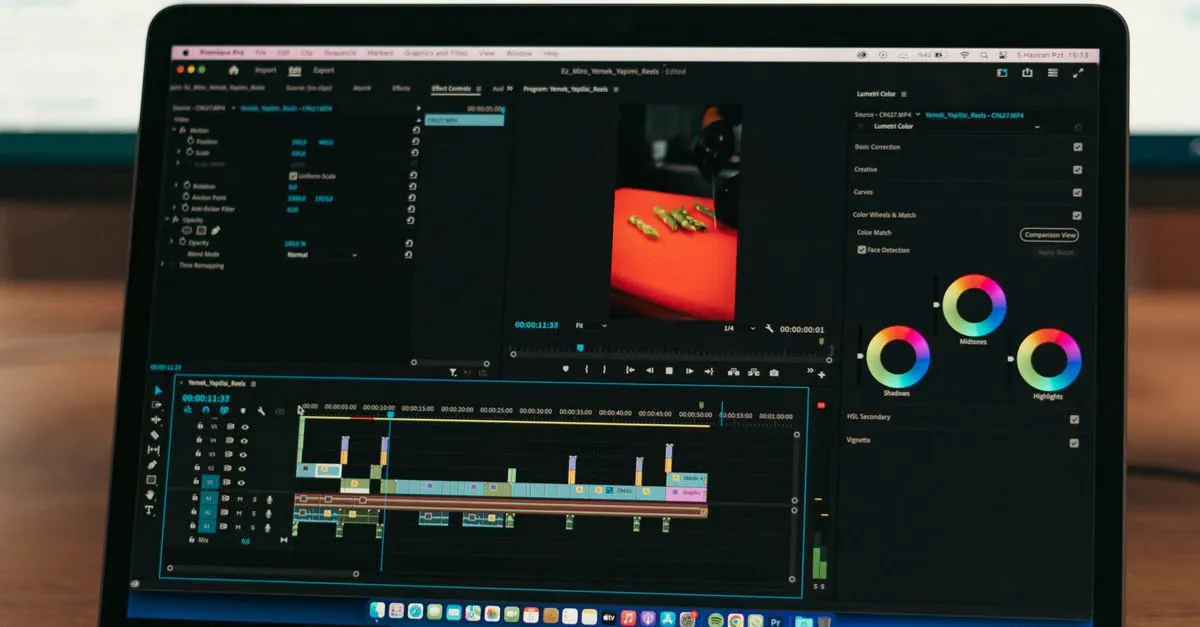
What is Premiere Pro AI Media Analysis?

Is the AMD Ryzen 7 9800X3D Good for Video Editing?
Keep reading
Related Articles