

Edit Talking Head Videos Without Constant Zoom-ins
Tired of the constant punch-in zoom effect? Discover a professional framework to keep your talking head videos highly engaging through smarter editing.
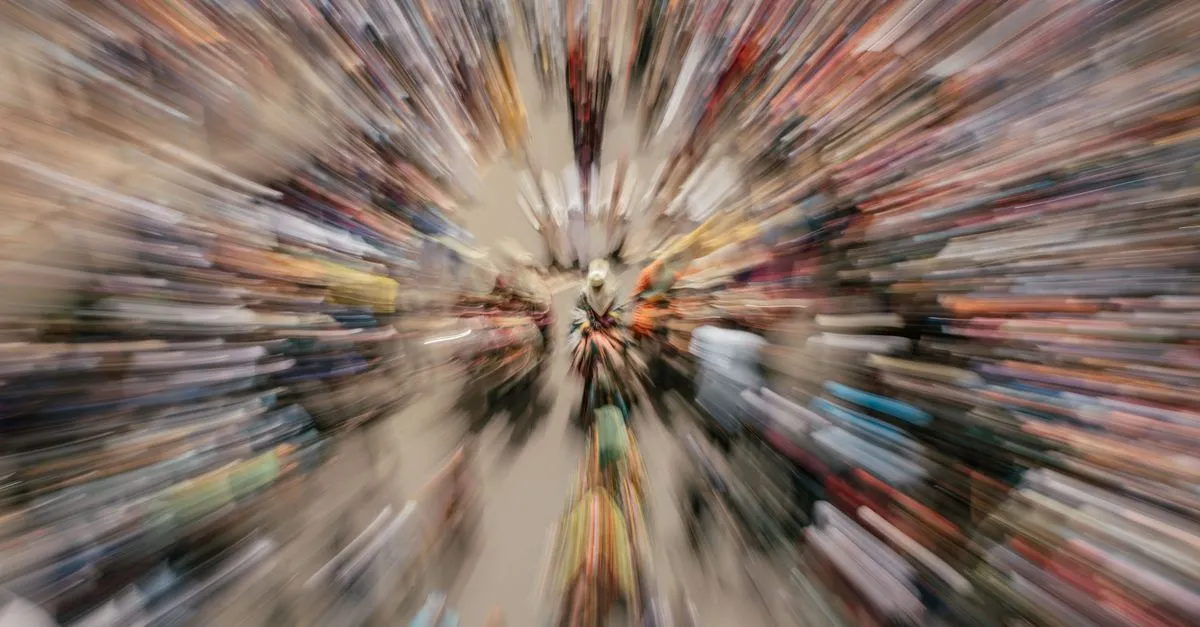
The constant zoom-in—often called the punch-in—has become the laziest crutch in video editing. While it initially gained traction as a quick way to mask bad cuts or inject artificial energy into a stagnant single-camera setup, the sheer volume of hyper-edited content has left audiences suffering from zoom-fatigue. Viewers are increasingly pushing back against these aggressive edits.
Discussions across editing communities, such as r/VideoEditing and r/editors, highlight a distinct shift toward what professionals call “invisible editing.” Audiences are building a higher tolerance for longer takes, but a lower tolerance for obvious, robotic editing tricks.
If you want to keep viewers watching your talking head videos, you do not need to constantly push the camera frame into your face every four seconds. Instead, you need a structured editing framework built on pacing, intentional visual variety, and natural human motion.
The Core Engagement Framework
Keeping a single-angle talking head video engaging requires replacing artificial camera movement with deliberate visual interrupts. The goal is to give the viewer’s brain something new to process before they get bored, without making the edit feel jarring.
Pattern Interrupts Without Scale Changes
A pattern interrupt is any change in the visual field that breaks the monotony of a static frame. Instead of scaling up your clip by 10% to zoom in, use elements that add context to what you are saying.
This can include clean, minimalist text overlays that highlight a key term, or static graphics that illustrate a concept. The key is subtlety. A simple, well-timed text pop-up or a graphic slide-in resets the viewer’s attention span just as effectively as a zoom, but without the motion-sickness effect.
Cutting on Motion
If you are working with a single camera angle and have to cut out a mistake or a long pause, a jump cut is often inevitable. To make this transition seamless without zooming, use the “cut on motion” technique.
Instead of cutting during a moment of complete stillness, place your edit point exactly when you make a physical movement. This could be a hand gesture, a head turn, or a slight lean forward. The human eye naturally tracks the trajectory of motion. When you cut during a movement, the viewer’s brain connects the action across the edit, perceiving it as a single, fluid motion rather than a jarring jump cut.
Strategic B-Roll and Cutaways
Overusing B-roll just to fill space is distracting, but strategic B-roll keeps retention high by providing immediate visual proof of your words. When you introduce a complex topic, transition to a screen recording, a product shot, or a relevant still image.
The most effective setup is a central talking head frame that seamlessly transitions to layered B-roll. This keeps the narrative moving forward and gives the audience’s eyes a break from focusing solely on the speaker.
The Environmental Palette Cleanser
For longer videos, visual monotony is your biggest enemy. One of the most effective ways to reset viewer attention is a physical change of environment.
If your video transitions to a new chapter or a different sub-topic, change the location of the shoot. Move from your desk to a bookshelf, or transition from indoors to outdoors. This acts as a natural, narrative-driven “palette cleanser” that signals a shift in the discussion without requiring a single digital transition.
Physical Props and Whiteboards
If you struggle with hand gestures or looking natural on camera, give yourself a physical tool to interact with. Writing on a physical whiteboard or drawing on a sketchpad forces the viewer to focus on the action happening within the frame.
It draws the eye to a specific point of interest, making the static frame feel dynamic and alive. It also naturally slows down your pacing, allowing you to deliver complex information in a more digestible, relaxed manner.
The Authenticity Shift and Modern Pacing
The transition toward invisible editing is deeply tied to how viewers evaluate credibility. Over-edited videos with constant zooms, pop-ups, and sound effects can feel heavily manufactured, often raising skepticism. A cleaner, more grounded presentation builds trust.
The Hook Matters More Than the Edit
Many editors spend hours polishing transitions in the middle of a video, forgetting that most viewers abandon videos within the first 10 seconds. No amount of fancy transitions, motion graphics, or zoom-ins will save a video if the opening is weak.
To maximize retention, focus your energy on crafting a compelling hook. Clearly state the value of the video or ask a specific, highly relevant question immediately. If the hook promises real value, viewers will stay tuned even if the visual presentation is completely static.
Prioritizing Rhythm Over Visual Flair
A snappy pace will always outperform visual gimmicks. Experienced editors focus on the rhythm of the speech rather than adding visual transitions.
This means ruthlessly cutting out dead air, long pauses, and filler words like “um” and “ah.” When you remove these gaps, the dialogue flows naturally and quickly, keeping the audience engaged through the momentum of the information itself.
However, do not make the mistake of creating a robotic, uniform pace. Mix rapid, punchy edits during quick explanations with longer, uninterrupted takes during more personal or thoughtful moments. This variation in clip length allows the audience to settle in and connect with your personality.
Optimizing the Post-Production Workflow
Implementing these techniques manually can be time-consuming, but restructuring your workflow makes the process highly efficient.
Pre-Production Planning
The biggest mistake you can make is trying to save a poorly planned video in post-production. Hiding mistakes, awkward transitions, and poor pacing takes twice as long if you do not prepare beforehand.
Write a script or a highly detailed outline before you hit record. Keep in mind that the average speaking rate is roughly 150 to 200 words per minute. As you write, storyboard or note exactly where B-roll, text overlays, or environmental shifts will go. When you know exactly where a cutaway will live, you don’t have to worry about hiding a jump cut with a zoom.
AI-Assisted Base Cuts
To speed up the tedious process of cleaning up your raw footage, leverage modern software tools. Using AI-assisted tools like Gling, Descript, or the native AI transcription features in DaVinci Resolve can save hours of manual labor.
These tools analyze your audio track, automatically detecting and removing silence, repetitive takes, and filler words. This leaves you with a clean, rough cut of your talking head video in minutes, allowing you to spend your creative energy on pacing, B-roll placement, and pattern interrupts.
The Future of Video Presentation
As the landscape continues to evolve, the demand for hyper-edited, high-stimulation content is leveling off. Audiences are seeking out depth, clarity, and authenticity.
The creators who stand out in the coming years will not be those with the flashiest transitions or the most aggressive zoom-ins, but those who can deliver clear, structured information in a way that feels genuinely human. By mastering the balance of natural pacing, cutting on motion, and strategic visual variety, you can create polished, professional videos that keep viewers watching from start to finish.
About the author
The ZQStream Team
Writes long-form essays on Live Streaming Tips, Video Editing Tutorials, Content Creator Gear, Software Tutorials, and Audience Growth Strategies and related topics. Curated by the editorial team behind ZQStream.
Read more
Fixing Screen Recording Audio Drift in Premiere Pro
How to Turn Passive YouTube Viewers into Active Chatters
Keep reading
Related Articles