


How to Turn Passive YouTube Viewers into Active Chatters
Transform silent YouTube Live viewers into active stream chatters using built-in Q&A tools, polls, pinned messages, and real-time interaction techniques.
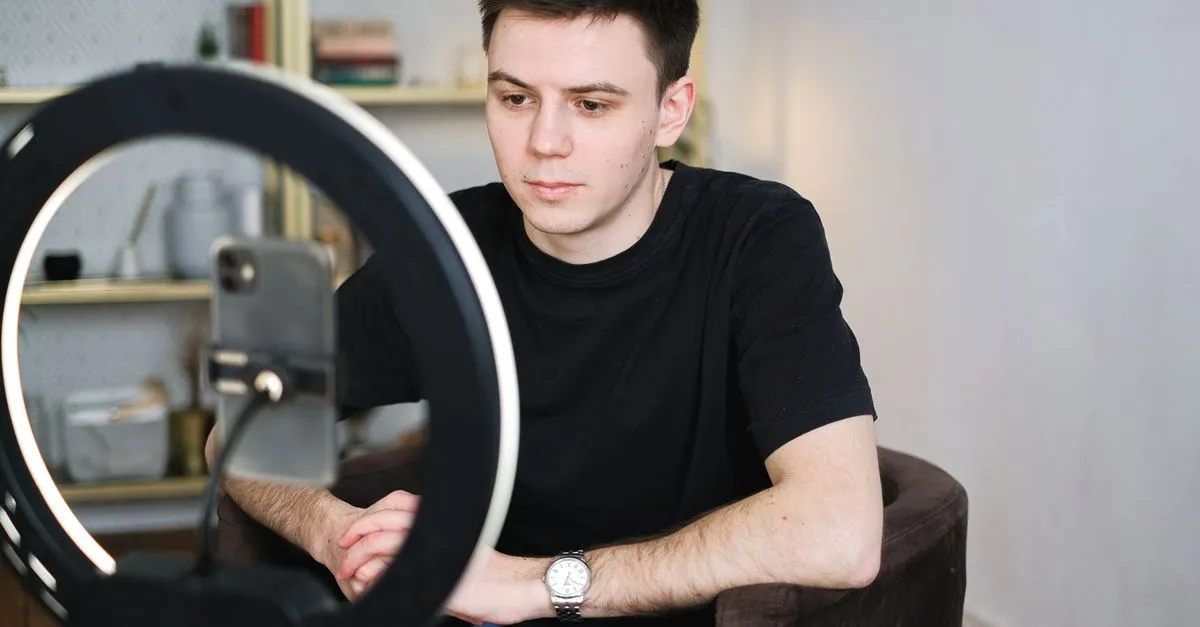
You hit the broadcast button, watch your viewer counter slowly tick upward, and face a completely silent chat box. Viewers log in, watch for a few moments, and leave without typing a single word. Research shows you have roughly 8 seconds to grab a user’s attention before they tune out or drop into passive watching mode. At the same time, interactive content leads to two times more engagement than static content, making real-time audience participation the main boundary between an empty feed and a buzzing community.
Lowering Transmission Latency and Bitrate Bottlenecks
Before expecting viewers to participate in chat, your stream feed must technically support real-time conversation. Latency is the delay between the live event taking place and its transmission to your viewers’ screens. High latency ruins conversational momentum—if you ask a question and viewers do not hear it for twenty seconds, the chat flow stalls. Maintaining low latency is crucial for real-time interaction because it keeps the delay short enough for spoken prompts and chat responses to feel like a natural conversation.
Video delivery also depends heavily on Adaptive Bitrate Streaming (ABR). ABR is a method that adjusts video quality based on the viewer’s internet speed in real time. If a viewer experiences constant buffering due to poor network adjustments, they will close the chat overlay or leave the stream entirely. Platforms that host and deliver live streams—such as YouTube Live, Facebook Live, and VIDIZMO—rely on these technical delivery systems to maintain smooth playback across varied hardware and connection speeds.
Harnessing Native YouTube Live Chat Features
YouTube provides built-in stream interaction tools specifically designed to draw viewers out of lurking, yet many broadcasts ignore them entirely.
Starting a live poll is one of the fastest ways to spark activity. Polls and surveys allow viewers to vote on decisions, answer questions, or share opinions regarding your stream content. Setting one up in the YouTube mobile app takes only a few steps:
- Tap Add at the bottom of the chat window.
- Select Create a poll.
- Enter your prompt and choices, then launch it.
Viewers will see the poll banner pinned near the top of their chat screen. Once you are ready to review the input, tap End poll from the banner at the top of the chat to reveal the results directly in the feed.
For Q&A segments, YouTube offers a dedicated Live Q&A feature. Instead of letting questions get buried under incoming text, the YouTube Live Q&A feature allows hosts to find and select questions within the Live Chat to answer on screen. To start a Live Q&A on the YouTube mobile app:
- Tap Add from the bottom of the chat window.
- Tap Start a Q&A.
- Add a prompt and tap Start Q&A.
Once launched, a dedicated “Questions List” appears inside the chat window, allowing you to review and pop individual questions onto the broadcast display.
Pinned messages offer another layer of direction for silent viewers. Pinned messages show below Super Chat in YouTube Live Chat. Only the host can pin messages—moderators and general viewers do not have permission to pin content. Keep in mind that YouTube allows only one pinned message at a time; pinning a new message automatically replaces the existing one.
To pin a message using the YouTube mobile app:
- Tap CREATE, select Live, and start the broadcast.
- Locate the specific message in the chat window.
- Tap More, then tap Pin.
If you need to clear the message later, tap More on the pinned banner and select Unpin.
It is also worth guiding your viewers on how they view the chat window. YouTube Live Chat can be toggled by clicking the down arrow at the top of the chat menu and selecting either Top Chat (which filters out potential spam) or All Chat (which displays every single message in real time). Suggesting that viewers switch to All Chat helps them follow rapid community replies without missing messages.
Streamlining Chat Management with Co-Hosts and Starred Comments
Managing a live broadcast while scanning a scrolling wall of text is difficult for a solo streamer. Professional live streamers assign moderators, teams, or co-hosts to manage and respond in the live chat while the main host runs the broadcast. Dedicated moderators can answer repetitive technical questions, handle chat moderation, and flag high-value prompts for the presenter.
Integrating third-party streaming tools makes this workflow smoother. StreamYard includes a starred comments feature to mark viewer comments that need to be addressed during a separate part of the live stream. This lets a co-host star incoming questions during the broadcast so the main host can handle them during a dedicated segment. StreamYard regularly showcases this format by hosting a Live Q&A once a month for their #AskStreamYard show on their official YouTube Channel.
Structuring Live Formats Around Audience Co-Creation
Getting viewers to chat requires structuring your stream content so that audience input directly shapes the broadcast.
Live content can be used to take audiences behind the scenes to see how decisions are made, products are built, or problems are solved. Instead of running a strict script, host unscripted Q&A sessions where you transparently answer hard questions and discuss behind-the-scenes decisions or mistakes. Broadcasters can also use live content to let customers co-create products, campaigns, offers, or content ideas in real-time, or host interactive live problem-solving sessions where experts provide immediate solutions to real-time customer challenges.
Major organizations and platforms have demonstrated the impact of structured live engagement:
- Dunkin’ Donuts: In February 2016, Dunkin’ Donuts went live on Facebook for National Donut Day to demonstrate how to make a cake donut. The interactive behind-the-scenes event attracted 2,450 impressions, 900+ live chats, 33,000 views, and 567 shares.
- L’Oreal: In 2020, L’Oreal hosted live shopping events on Facebook and Instagram led by beauty experts and influencers. Their live show received over 270 chat messages from the community in about 60 minutes and generated a 146% growth in online retail orders over the next 8 weeks.
- Mogujie: Mogujie, a Chinese fashion social media and ecommerce platform, used live streaming to let hosts showcase products and respond to viewer questions in real-time, creating a direct feedback loop between host and audience.
Direct Recognition and Market Growth
Hosts can increase chat engagement by using mentions, shoutouts, or direct interactions with audience members. Reading a viewer’s display name and directly answering their specific chat line breaks the barrier between speaker and audience. It shows passive lurkers that sending a chat message results in actual recognition on the broadcast.
The appetite for live, interactive video feeds continues to expand globally. The video streaming market is set to reach USD 223.98 billion by the year 2028 according to Grand View Research. Leveraging built-in chat features, low-latency feeds, and structured audience participation ensures your live stream keeps viewers engaged rather than silently watching from the side.
About the author
The ZQStream Team
Writes long-form essays on Live Streaming Tips, Video Editing Tutorials, Content Creator Gear, Software Tutorials, and Audience Growth Strategies and related topics. Curated by the editorial team behind ZQStream.
Read more
Edit Talking Head Videos Without Constant Zoom-ins

Configure Twitch Ads Manager to Stop Random Mid-Rolls
Keep reading
Related Articles