


NVIDIA RTX 50 Series 4:2:2 Decode Tested: Can You Ditch Proxies?
NVIDIA RTX 50 Series 4:2:2 hardware decoding unlocks smooth 4K long-GOP video editing. Find out if you can finally ditch your proxy workflows.
You just brought home a shiny new camera—one of the many affordable sub-$600 models capable of shooting rich 10-bit 4:2:2 video. You pop the memory card into your reader, drag those pristine clips into your video editing software, and press the spacebar. Instead of fluid video playback, your timeline instantly freezes, your CPU cooling fans scream like a jet taking off, and scrubbing back and forth feels like wading through wet cement.
To make any progress on your edit, you spend the next two hours generating lightweight proxy files. You watch render progress bars crawl across your screen and burn hundreds of gigabytes of storage space just to edit footage you captured in minutes.
For years, PC editors running Windows desktops faced this exact brick wall. Even if you owned a top-tier graphics card, your GPU lacked dedicated hardware decode engines for 4:2:2 video media, forcing your central processor to handle the brutal computational heavy lifting.
With the release of the NVIDIA GeForce RTX 50 Series, that hardware barrier has finally crumbled. But does dedicated 4:2:2 decoding mean you can permanently delete your proxy presets?
Why 4:2:2 Video Brought Top-Tier PCs to Their Knees
To understand why your system struggled, you have to look at how cameras pack image data. Most budget or entry-level consumer cameras rely on 4:2:0 chroma subsampling, which discards a significant portion of color data to keep file sizes small. In contrast, 4:2:2 video formats capture double the color information while only increasing the raw file size by roughly 30 percent (or 1.3x). That extra color data is critical when you need clean green-screen keying, razor-sharp text overlays, or room for heavy color grading without banding artifacts.
The problem isn’t just the file size; it’s the compression structure. Modern mirrorless cameras write video using long-GOP (Group of Pictures) codecs like H.264 and H.265 (HEVC). These codecs don’t store full image frames continuously. Instead, they store a keyframe and calculate only the mathematical changes across surrounding frames.
When you ask your editing program to play long-GOP 4:2:2 footage backwards, step frame-by-frame, or scrub quickly, the media engine must rebuild every single frame on the fly.
While Apple Silicon processors and Intel integrated graphics (iGPUs) added native HEVC 4:2:2 hardware decoding years ago, discrete desktop graphics cards from NVIDIA—up through the flagship RTX 4090—lacked 4:2:2 hardware decode logic entirely. When you loaded 10-bit 4:2:2 footage onto an RTX 40-series machine, the GPU handed the job off to CPU software decoding. No matter how fast your multi-core processor was, software decoding long-GOP video turned timeline scrubbing into a slideshow.
Under the Hood of the NVIDIA Blackwell Video Architecture
The GeForce RTX 50 Series, built on NVIDIA’s Blackwell architecture, fundamentally changes the media pipeline. Packed into these cards are the sixth-generation NVIDIA decoder (NVDEC) and ninth-generation NVIDIA encoder (NVENC).
Crucially, the RTX 50 Series stands as the first family of GPUs to feature native hardware decoding for H.264 10-bit 4:2:2 video (excluding MBAFF).
Key Decoding Capabilities
- H.264 8/10-Bit 4:2:2 Decoding: Direct hardware playback for both standard and high-bit-depth H.264 camera files.
- H.265 (HEVC) 8/10/12-Bit 4:2:2 Decoding: Complete hardware decoding support across all common high-efficiency camera profiles.
- Massive Resolution & Frame Throughput: Decodes frame resolutions up to 8192×8192. A single decoder engine can process up to eight 4K 60fps streams simultaneously, or up to 8K 75fps (equivalent to ten 4K 30fps video streams).
- 2x H.264 Decode Speed: The sixth-generation NVDEC double the raw decoding speed for H.264 media compared to previous generations.
Key Encoding & Quality Upgrades
- 4:2:2 Hardware Encoding: Delivers a 10x acceleration in 4:2:2 encoding for both H.264 and HEVC formats.
- 8-bit to 10-bit Up-Encoding: Introduces hardware capabilities to encode standard 8-bit source material into 10-bit H.264 files.
- Stereoscopic Support: Native Multiview-HEVC (MV-HEVC) support for 3D workflows.
- AV1 & HEVC Efficiency: The ninth-gen NVENC delivers a 5% quality improvement (BD-BR) on HEVC and AV1 outputs, alongside a new AV1 Ultra Quality mode that achieves 5% higher compression at equivalent visual quality.
RTX 50 Series Lineup Breakdown for Editors
Not every editor needs a giant workstation card, but choosing the right tier determines how many simultaneous streams and renders your machine can sustain.
| GPU Model | VRAM | Hardware Encoders (NVENC) | Hardware Decoders (NVDEC) |
|---|---|---|---|
| NVIDIA GeForce RTX 5090 | 32GB | 3 Encoders | 2 Decoders |
| NVIDIA GeForce RTX 5080 | 16GB | 2 Encoders | 2 Decoders |
| NVIDIA GeForce RTX 5070 Ti | 16GB | 2 Encoders | 1 Decoder |
| NVIDIA GeForce RTX 5070 | 12GB | 1 Encoder | 1 Decoder |
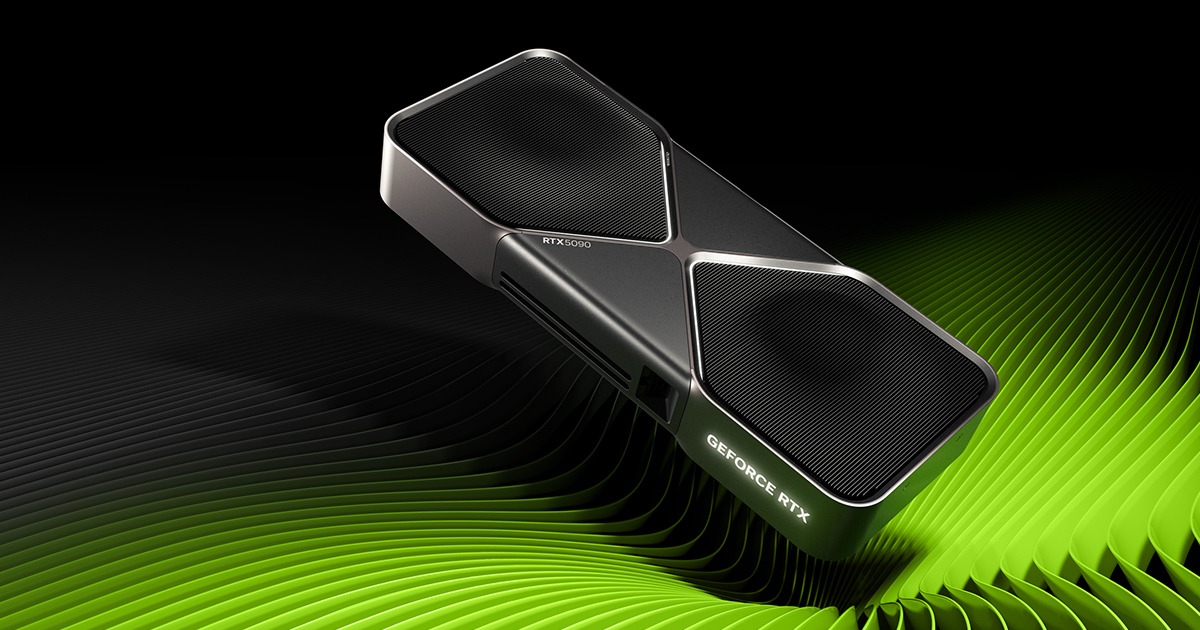
At the top of the stack, the flagship RTX 5090 outperforms the previous-generation RTX 4090 by up to 2x in creative applications. When exporting finished timelines, the RTX 5090 renders video 60% faster than the RTX 4090 and at 4x the speed of the older RTX 3090. For creators on tighter budgets, the lineup starts at $549 for the RTX 5070, making dedicated 4:2:2 hardware decoding accessible without workstation-level spending.
NLE Software Support and Real-World Benchmark Results
Hardware specifications mean very little if your editing suite cannot talk to the GPU’s media block. Luckily, NLE developers moved quickly to leverage Blackwell’s silicon.
Blackmagic Design’s DaVinci Resolve, CapCut, and Wondershare Filmora provide native hardware acceleration for both 4:2:2 encoding and decoding on RTX 50 Series GPUs. Adobe Premiere Pro offers complete 4:2:2 hardware decode acceleration.
In addition to raw playback, Premiere Pro utilizes the fifth-generation Tensor Cores on RTX 50 Series GPUs to speed up built-in AI tools. The Enhance Speech feature runs up to 7x faster on an RTX 5090 Laptop GPU compared to running on software, while Adobe Media Intelligence tagging sees a 30% performance boost over an RTX 4090 Laptop GPU.
Note for DaVinci Resolve users: Hardware-accelerated decoding for H.264 and H.265 requires the paid DaVinci Resolve Studio version. The free edition of Resolve routes H.264/H.265 decoding through the CPU regardless of your GPU model.
In real-world performance verification by Puget Systems, adding hardware-level 4:2:2 decoding resulted in a massive 77 percent performance jump in long-GOP timeline playback over RTX 30 Series GPUs.
Can You Ditch Proxies for Good?
The answer depends entirely on identifying what currently slows down your specific timeline.
You CAN Ditch Proxies If: Your Bottleneck Is “Decode-Bound”
If your system stutters the moment you drag raw 10-bit 4:2:2 H.264 or HEVC clips onto an empty timeline, your system was decode-bound. Because an RTX 50 Series GPU handles 4:2:2 decompressing inside dedicated hardware, scrubbing through raw camera files, playing clips backward, and building multi-camera cuts (up to eight 4K 60fps streams per decoder) will play smoothly without rendering a single proxy file.
You STILL NEED Proxies If: Your Bottleneck Is “Processing-Bound”
Proxies only replace the need to decompress camera codecs. They do not magically reduce the mathematical workload of heavy GPU visual effects. If your timeline stalls because you have stacked multiple color grading nodes, temporal noise reduction, complex spatial stabilization, or heavy Fusion/After Effects compositions, your GPU’s compute cores are maxed out.
In processing-heavy workflows, transcaling files down to lightweight intraframe proxy formats (like ProRes Proxy or DNxHR) reduces overall system overhead, freeing up memory bandwidth for effects processing.
For the majority of content creators, vloggers, and commercial video editors who shoot on modern mirrorless cameras, the routine of importing media, setting up background proxy batches, and filling up secondary SSD storage is finally over.
Instead of waiting an hour for proxies to generate before starting your edit, you can drag raw 10-bit 4:2:2 camera files straight onto your timeline, press spacebar, and cut immediately with zero lag—getting your time, storage space, and evenings back.
About the author
The ZQStream Team
Writes long-form essays on Live Streaming Tips, Video Editing Tutorials, Content Creator Gear, Software Tutorials, and Audience Growth Strategies and related topics. Curated by the editorial team behind ZQStream.
Read more
Fix DaVinci Resolve Audio Sounding Different After Export
Why YouTube Thumbnail A/B Testing Fails Small Channels
Keep reading
Related Articles