

Dell UltraSharp U5226KW Review: Is 52-Inch 6K Worth It?
Dell UltraSharp U5226KW review: we test the 52-inch 6K ultrawide for 4K video editing, Thunderbolt 4, scaling, HDR and value for creators before you buy it.
Quick Answer
- A 52-inch 6K monitor built to replace multi-monitor setups with one screen, offering a huge canvas for video and photo editing
- Its 6,144 x 2,560 resolution can show native 4K, but at about 129 PPI full resolution is super tiny and macOS scaling can cause blurriness
- Thunderbolt 4 carries 140W and 6K video via a single cable and supports four systems, but full 6K at 120Hz requires Display Stream Compression
- IT Pro lists poor HDR and mediocre motion handling as reasons to avoid, and questions whether it is worth well over £2,000
What the Dell UltraSharp U5226KW Is and Who It Is For
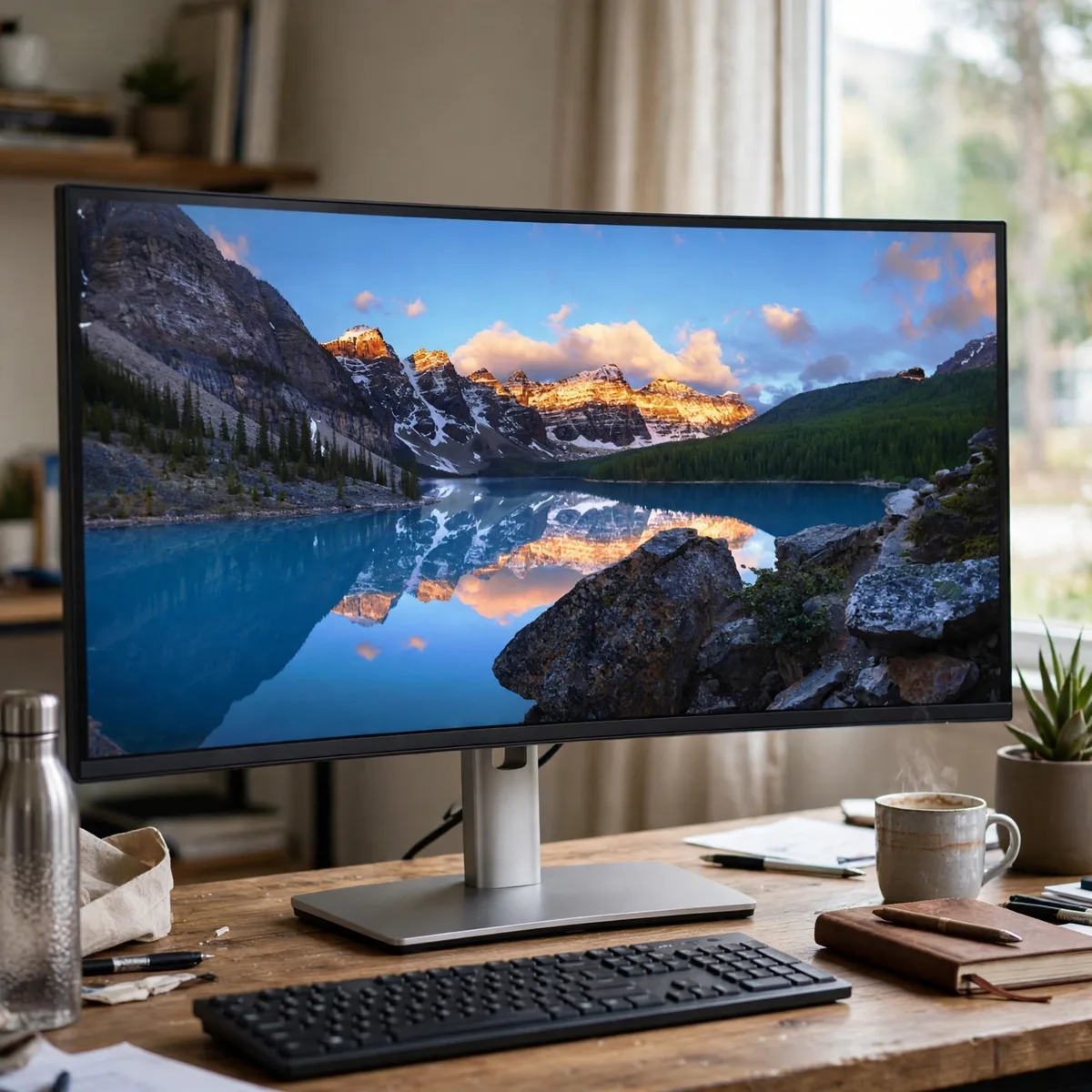
Some monitors are an upgrade. This one is a desk reset. The Dell UltraSharp U5226KW — introduced by Dell as the Dell UltraSharp 52 Thunderbolt Hub Monitor — is a 52-inch 6K monitor built to replace multi-monitor setups with one screen. Dell describes it as the world’s first 52-inch 6K monitor, and as the first monitor to achieve the highest tier of TÜV Rheinland Low Blue Light certification. That framing is the whole point: not a bigger version of a normal display, but a single, very wide canvas meant to take the place of the two or three panels many professionals currently live with, bezels and all.
Dell is clear about who that canvas is aimed at. The company says the monitor is designed for financial traders, data scientists, engineers and executives who need maximum screen real estate without a multi-monitor setup. Those are different jobs, but they share the same problem — too much to look at at once, and not enough room to keep it visible. One long screen lets that work stay open side by side, instead of hidden behind other windows or split across separate displays that never quite line up.
Video editors sit squarely in that same camp, even if they are not the first group Dell names. Matt Johnson’s review on whoismatt.com is titled “Dell’s 52-Inch Ultrawide Is a Monster Built for Video Editing (U5226KW Review),” published June 11, 2026 and updated August 17, 2026, and it comes from someone who has already walked the ultrawide path. He started with a 34-inch ultrawide from Gigabyte, then a couple of years ago upgraded to a Dell 40-inch ultrawide, before moving to this 52-inch model. That progression matters because it is not a first-time ultrawide impression — it is a comparison against screens that were already large. Johnson also states that the review is not paid or sponsored by Dell, that Dell did send him the monitor so he could make the review, but that the opinions are entirely his own. For anyone weighing a timeline-heavy workflow, where the edit, the preview, the audio, and the bins all compete for space, that kind of single-screen real estate is the appeal — and it is why many editors ask Is DaVinci Resolve Worth the Learning Curve for Beginners? before committing to a new setup, or check our CapCut Desktop Review: Can It Handle Professional Editing? if their workflow leans toward a lighter tool.
The same replace-your-setup idea runs through the other coverage, too. The StorageReview review, titled “Dell UltraSharp U5226KW Review: A Massive 52-Inch 6K Display for Your Entire Workflow” by Lyle Smith on March 20, 2026, describes it as “a 52-inch 6K monitor built to replace multi-monitor setups with one screen.” The IT Pro review, titled “Dell UltraSharp U5226KW review: The perfect ultrawide monitor for power users” by Sasha Muller, published 28 October 2026, lands in the same place with different words — this is a monitor for power users, not for someone who just wants a slightly larger screen for email. Even the MKBHD video makes the point in its title alone: “This 52-inch ultrawide can replace dual monitors.”
Put together, the picture is consistent. This is not a monitor trying to be everything to everyone. It is a very large, very wide, 6K screen for people whose work does not fit comfortably on one normal display, and who would rather have that work on one continuous surface than spread across two or three separate ones. If you have ever wished your second monitor was simply part of your first, this is the monitor built for that wish.
Size, Scale and Desk Setup for a 52-Inch Ultrawide
When FedEx brought the box to his door, the reviewer genuinely thought it was a TV. That’s the first thing to understand about this monitor — it doesn’t arrive like a normal piece of desk gear, and it doesn’t behave like one once it’s out of the box either. It’s the kind of purchase where the physical reality hits you before you’ve even plugged anything in, and you start rethinking where it’s going to live.
The numbers help explain why. Its 52-inch IPS Black panel measures 120cm wide. The panel itself is over 51cm tall. Put those two measurements together and you’re not looking at a slightly bigger version of the monitor you already have. You’re looking at a wide, tall slab that dominates a desk in a way that a 32-inch or 40-inch screen simply doesn’t. Width is the obvious change, but height matters too — over 51cm tall, it fills a lot of your view.
That scale changes how you sit, too. With his 32-inch or 40-inch monitors, the reviewer is comfortable sitting about 18 inches to two feet from the screen. That’s a familiar working distance for a lot of people — close enough to read small text comfortably, close enough that the screen fills your view without you having to work for it.
With this 52-inch, that same distance doesn’t work. If you sit that close your eyes really only take in the middle of the screen, and you end up turning your head a lot to see anything on the sides. It’s not a subtle difference. The centre is right there, sharp and immediate, while the edges sit out in your periphery. To actually use them you have to physically move, swinging your gaze — and your neck — left and right through the day. Over a long session, that constant turning becomes the story of the monitor, rather than the work on it.
The reviewer states you will probably be most comfortable sitting about 30 to 35 inches back while you work. That’s a big shift from 18 inches to two feet, and it’s worth taking seriously before you buy. Thirty to 35 inches puts a lot more air between you and the panel. At that distance the whole 120cm width comes into view more naturally, and you can take in the left and right sides without the same amount of head-turning. You’re no longer hunched over the middle of a huge screen; you’re sitting back and letting the width work for you.
That distance also changes your desk setup. Used from 30 to 35 inches away, a monitor this wide needs room behind it and room in front of you. You can’t just drop it where your old monitor sat and expect the same feel. You need to push the screen back, pull your chair back, and still have a comfortable place for your keyboard and mouse. Otherwise you’ll end up sitting closer than you want to, simply because there’s nowhere else to go.
That’s also why it’s worth thinking about how you like to work. IT Pro lists as a reason to avoid: “Some may prefer multiple monitors.” A single 52-inch panel gives you one continuous surface. Some people will love that. Others will miss the physical separation of separate displays. If your habit is built around multiple monitors, this replaces it with something else, and you need to be honest about whether that suits you.
6K Resolution and Real-World Sharpness for 4K Video Editing
Video editing software lives on a very long horizontal timeline, so an ultrawide makes a lot of sense for it. The extra width lets you see so much of your timeline as you edit, without constantly scrolling back to find a cut buried in a long project. IT Pro puts it plainly, listing as a reason to buy a “Huge canvas for video and photo editing,” and describing the display as “A gargantuan ultrawide monitor perfect for power users and 4K video editing – but image quality pales in comparison to professional panels.” That second half is worth holding onto while the pixel count sounds impressive, because the headline resolution tells only part of the story.
On paper, the resolution is 6,144 by 2,560. IT Pro notes that its 6,144 x 2,560 resolution packs in almost twice as many pixels as a standard 4K display, which explains why the screen feels so roomy for an edit. Even if you are editing 4K video or higher, you can see all of the native resolution on screen, so you are not forced to shrink your preview down to a small window just to fit your bins, scopes, effects controls, and timeline around it. For a 4K workflow, that is a real, practical advantage — the footage can stay at full size while the rest of the interface still has somewhere to go.
The catch is density. Because the panel is 52 inches, it only works out to about 129 pixels per inch. That is well below the 218 PPI that Apple would call a retina display, and you feel that gap in everyday use. The panel has a huge number of pixels in total, but they are spread across a very large piece of glass, so total resolution and sharpness are not the same thing here. One tells you how much you can fit on screen; the other tells you how clean each inch of it looks when you are staring at it for hours.
That tradeoff shows up immediately if you try to run it at full 6,144 by 2,560. At that setting, everything is super tiny, way too small to comfortably run DaVinci Resolve on, especially if you are sitting three feet back. Menus, labels, and timeline controls shrink to the point where the extra space stops helping and starts getting in the way. You have more room, technically, but you cannot use it comfortably from a normal viewing distance, which defeats the point of buying a monitor this wide for long editing sessions.
The resolution macOS recommends by default is 3,072 by 1,280, where you start to see some blurriness in the text and around the edges of things. At 3,072 by 1,280, you are basically running the display barely above 1080p vertically, which is a strange place to land after buying into a 6K panel. The softness is noticeable, and it undercuts the idea that you are working on a high-resolution screen at all.
The reviewer states the middle ground at 3,840 by 1,600 is, in his opinion, the sweet spot on macOS. It sits between the tiny full-resolution view and the softer default view, keeping the interface at a usable size while preserving more of the width that makes the timeline so useful. That is where the 6K resolution stops being a headline number and starts doing the actual work of a 4K editing monitor.
Connectivity, Multi-Computer Workflows and Bandwidth Limits
IT Pro puts it plainly in its reasons to buy: “Thunderbolt 4 and generous connectivity” and, separately, “Works well with multiple computers.” Those two lines tell you a lot about who the Dell UltraSharp U5226KW is actually for. This isn’t a monitor that expects you to plug in one machine and leave it alone. It’s built for the kind of desk where a work laptop, a personal desktop, a second editing rig, or a streaming box all need time on the same screen — and where swapping cables every time you switch tasks would slowly drive you mad.
The headline connection is Thunderbolt 4, and it does a lot of heavy lifting on its own. Through a single cable it ferries 140W of power and 6K video and data, which means one plug can keep a laptop running while it drives the display and moves data at the same time. For a creator desk that already has a camera, a mic interface, lights, and a tangle of chargers fighting for space, that kind of consolidation matters. It’s not just tidier, it changes how you use the monitor day to day — you dock, you work, you undock, and you don’t have to think about which cable does what.
That single Thunderbolt 4 connection is only part of the story. The U5226KW has a further three upstream USB-C ports, which allow you to use four systems on the same display. You can run them one at a time, switching between machines as your day shifts from editing to calls to streaming, or you can run them simultaneously in the monitor’s various picture-by-picture modes and keep two — or more — sources visible side by side. That second option is where it starts to feel less like a normal monitor and more like a proper control surface for a multi-machine setup. You might keep your main edit on one system while chat or a script stays visible from another, without a second display.
There is a catch, though, and it’s an important one if you’re buying this monitor specifically for its headline numbers. Achieving its maximum 6,144 x 2,560 resolution and 120Hz refresh rate requires 47Gbit/s of data. Not even the fastest current connections can supply 47Gbit/s without using data compression. In practice, that means the full resolution and the full refresh rate don’t just happen because you plugged in a modern cable. The pipeline has to be able to carry that much information, and right now that pipeline needs help to get there.
To hit that top end, you will require a DisplayPort 1.4, HDMI 2.1, or Thunderbolt 4-equipped device and need Display Stream Compression to be enabled, too. If your machine doesn’t have one of those connections, or if Display Stream Compression isn’t switched on, you’re not going to see the monitor at its best. Drop below those specs, and you may have to make do with 60Hz – or drop the resolution. That isn’t a flaw in the panel itself so much as a reality check about what your computer can actually feed it. Before you commit, it’s worth checking what your laptop or desktop can output, not just what the monitor can accept, because the two sides have to line up. A system built around the [verify exact details with official documentation] will still be limited by its output if that output can’t meet the requirement — the monitor can only show what it receives.
Drawbacks, Image Quality Trade-Offs and Value Verdict
Every ultrawide that tries to do everything ends up making a few compromises somewhere, and the UltraSharp U5226KW is no exception. IT Pro puts it bluntly in its reasons to avoid: motion handling is mediocre, and HDR is poor. Those two lines matter more than they might look at first glance, because they cut straight to what this screen is actually good at — and what it isn’t — rather than how impressive it looks on a desk.
Start with motion. “Mediocre” doesn’t mean unusable, and it doesn’t mean the picture falls apart the moment anything moves. It means the experience isn’t as clean or as fluid as you’d hope for at this price, and that gap becomes noticeable once you start comparing it to other displays you’ve used. For static work — reading, writing, sorting through timelines, keeping a dozen windows open at once — that kind of shortcoming can fade into the background. For fast scrolling, panning video, or anything where smooth movement is part of the job, it stays in view. The frustration isn’t that the U5226KW fails at motion entirely; it’s that at this price, you expect the movement to have been smoother.
HDR tells a similar story, only with a clearer dividing line. IT Pro also lists poor HDR as a reason to avoid, and for a certain kind of buyer that alone settles the decision. If you regularly work with HDR footage, grade for HDR delivery, or simply care about how HDR films and games look in a dark room, a weak HDR showing isn’t a minor footnote — it’s the main event, and it undercuts a lot of the appeal of a big, immersive panel. That doesn’t automatically make the monitor a bad choice for everyone, though. Plenty of editing work still happens in SDR, and plenty of creators are more concerned with having room for a timeline, preview, bins, and scopes side by side than with peak highlights. If that sounds like your workflow, the HDR weakness might be something you can live with. If you’re learning a tool like DaVinci Resolve and starting to think seriously about colour and delivery, it’s worth reading Is DaVinci Resolve Worth the Learning Curve for Beginners? alongside a review like this one, because the software side of HDR is only half the story — you still need a display that can show you what you’re actually doing.
Then there’s the price, which is where those two trade-offs stop being abstract and start to feel personal. IT Pro frames the core question as whether the UltraSharp U5226KW is worth paying well over £2,000 for, and a YouTube review puts the same dilemma in its title: “This Monitor Costs $2799… But Is It Worth It? (Dell U5226KW Review)”. At well over £2,000 — and $2,799 in that video’s framing — you’re not just buying screen space. You’re buying into the idea that a single ultrawide can replace a multi-monitor setup, simplify your desk, and stay in place for years. That idea only holds up if the things you give up don’t matter to you as much as the things you gain.
So the verdict comes down to priorities. If your day is dominated by productivity, multitasking, and long-form SDR editing, the scale may outweigh the compromises — provided you go in with your eyes open. If HDR is central to what you make or watch, or smooth motion is non-negotiable, the price makes those flaws harder to excuse, not easier.
References
- Dell UltraSharp U5226KW Review: A Massive 52-Inch 6K Display for Your Entire Workflow - StorageReview.com
- Dell’s 52-Inch Ultrawide Is a Monster Built for Video Editing (U5226KW Review)
- Dell UltraSharp U5226KW review | IT Pro
- DELL TECHNOLOGIES AT CES 2026: XPS Returns, Alienware Expands and UltraSharp Monitors Set New Standards
About the author
The ZQStream Team
Writes long-form essays on Live Streaming Tips, Video Editing Tutorials, Content Creator Gear, Software Tutorials, and Audience Growth Strategies and related topics. Curated by the editorial team behind ZQStream.
Read more
Over-Editing Is Killing Your Short-Form Videos in 2026

Why Your Channel Stops Growing When Only You Can Run It
Keep reading
Related Articles